
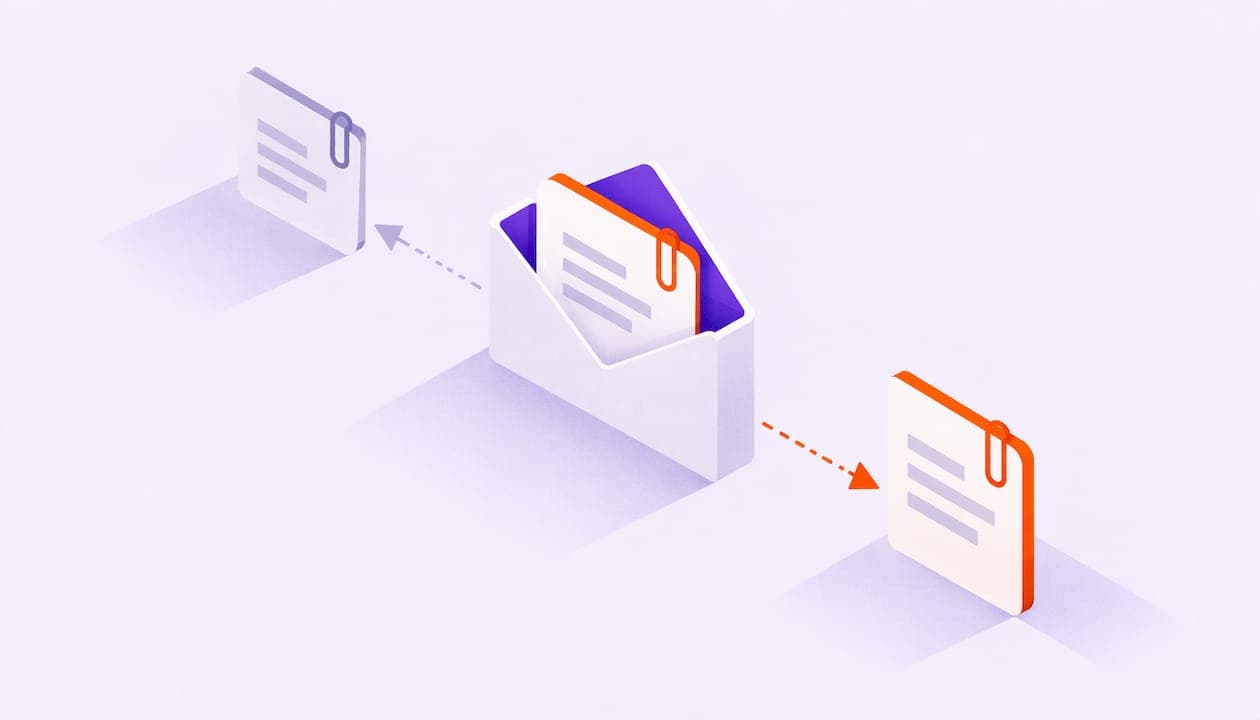
Replacing an email attachment takes seconds while the message is still a draft: remove the old file, attach the right one, and check before you hit send. Once the email is sent, you generally cannot swap the file in the recipient's inbox. Your options then are to catch it in the Undo Send window, recall the message (Outlook, in narrow cases), or send a correction. The better long-term fix is to stop sending files as attachments at all and send a tracked link instead, so the file behind it can be corrected and you can see how it is read.
This guide covers each case step by step, then shows how to replace attachments with a link you control.
TL;DR
- Before sending: remove the old file (the X in Gmail, the drop-down arrow or right-click in Outlook), then attach the correct one.
- After sending: Gmail cannot change attachments in the recipient's inbox. Outlook recall works only inside the same Microsoft 365 or Exchange organization, and only if the message is unopened.
- If the window has passed, send a short correction email with a clear subject line.
- For large, sensitive or important files, send a link instead of an attachment. A link can point to a corrected file, and a tracked link shows you who opened it and which pages they read.
Table of Contents
- Replace an attachment in a draft
- Change the attachment in a saved email template
- Can you replace an attachment after the email is sent?
- What to do when the wrong file already went out
- When to send a link instead of attaching the file
- Why sales teams replace attachments entirely
- Our perspective
- How to replace an attachment with a tracked link in WarmDoc
- Start with the free plan
- Habits that prevent wrong attachments
- FAQ
- Sources
Replace an attachment in a draft
This is the easy case, and the steps are nearly identical everywhere: delete the wrong file, add the right one, then review the whole message.
Gmail
Open the draft. Click the X next to the attachment name to remove it, then click the paperclip icon to attach the correct file. Google's help page confirms you can remove an attachment from the compose window after adding it. Before sending, check the recipient list, subject line and attachments one more time.

New Outlook for Windows
Open the draft and select the drop-down arrow next to the attachment name. Choose Remove attachment, then attach the new file. Microsoft documents this in its guide to removing or deleting attachments in Outlook.
Classic Outlook
Right-click the attachment in the Attached box and click Remove, or select it and press Delete. Then attach the new file. The same Microsoft page covers this path.
Outlook for Mac
While the message is still a draft, you can preview, open or remove an attachment by choosing the drop-down arrow next to the file and selecting Remove. Microsoft describes this in its page on attaching files in Outlook for Mac.
A 20-second pre-send check
Most wrong-attachment mistakes happen on the last click. Run this list every time:
- Read the file name, not just the icon. Names like "Proposal_v3_FINAL" and "Proposal_v3_FINAL2" look the same at a glance.
- Open the attachment from the draft if your client allows it, and confirm the version.
- Check that the recipient is the right person.
- Check the subject line matches what the file is.
- If Gmail converted a big file into a Drive link, confirm the sharing permissions let the recipient open it.
Change the attachment in a saved email template
If you reuse the same email, the attachment often lives in a template. Fixing it once saves you from repeating the error.
In Gmail, compose the template text, choose More options, then Templates, then Save draft as template, and pick the existing template to overwrite. Gmail's help page on creating a template also notes that templates can only be used on a computer.
In Outlook, templates are saved as .oft files. You cannot edit the file directly. Open it, which creates a new email copy, make your changes, and save it back as an .oft file, overwriting the original.
The weak spot of template attachments is that they go stale. The deck you attached in March is not the deck you want to send in November. A link in the template avoids this, because the template never changes and the file behind the link does. More on that below.
Can you replace an attachment after the email is sent?
Short answer: usually not, but you have a few options depending on how fast you act and which email system you use.
| Situation | What works |
|---|---|
| Gmail, just clicked Send | Click Undo inside the Undo Send window, fix the attachment, resend |
| Gmail, window passed | Send a second email with the correct file |
| Outlook, same Microsoft 365 or Exchange organization, recipient has not opened it | Recall the message and replace it |
| Outlook, outside your organization or already opened | Send a second email with the correct file |
| New Outlook for Windows, sent copy in your own mailbox | Remove the attachment only by deleting the whole email |
Gmail: Undo Send is a buffer, not a recall
In Gmail, once the email is delivered, you cannot change its attachments in the recipient's inbox. What you do have is Undo Send. By default it gives you a 5-second window, which you can extend to 10, 20 or 30 seconds under Settings, General, Undo Send. Turn it up to the maximum today. It costs nothing, and it is the only way to truly pull back a Gmail message.
Outlook: recall has strict conditions
Outlook can attempt to recall and replace a sent message, but only if you and the recipient are both on Microsoft 365 or Exchange accounts in the same organization and the recipient has not opened the message. If those conditions hold, use Recall This Message and choose to delete unread copies and replace with a new message. Otherwise, treat the email as sent.
In new Outlook for Windows, removing an attachment from a sent email means deleting the entire email. If you want to keep the message but free up space, save the attachment to your computer or OneDrive, forward the email to yourself without the attachment, then delete the original and empty Deleted Items, as Microsoft's community answers describe. That cleans up your mailbox. It does not change what the recipient already has.
What to do when the wrong file already went out
When recall is not an option, speed and clarity matter more than anything. The goal is that the recipient opens the right file and ignores the wrong one.
- Send the correction quickly, ideally within minutes. Replying on the same thread keeps context together.
- Put the fix in the subject line, for example "Correction to previous email: updated proposal attached."
- Open with one plain sentence: "I attached the wrong version earlier. Please use the file in this message."
- Name the file so it cannot be confused with the first one, such as adding the date.
- Do not apologize at length. One line is enough.
If the wrong file was sensitive, such as pricing meant for another prospect, tell your manager or your security contact right away. They can decide on next steps for your organization. This is where attachments hurt most: once a file is out, it is a copy you no longer control.
When to send a link instead of attaching the file
Attachments are the default, but they are not always the right tool. Switch to a link in these cases:
- The file is too big. Gmail personal accounts and Outlook.com both cap messages at 25 MB, and Gmail turns larger files into Google Drive links automatically. In Outlook mobile, the cap is 33 MB for most account types and 20 MB for iCloud accounts.
- The file type is blocked. Outlook blocks some file types, such as .exe, to protect against viruses, and Microsoft recommends sending a OneDrive link instead.
- The file will change. A link always opens the current version.
- You need to know what happens next. An attachment is a black box once it leaves your outbox.
If you use a cloud drive link, check the sharing permissions so the recipient can open it. A link that asks for access is a dead end, and the delay costs you momentum with a prospect.
Why sales teams replace attachments entirely
For a sales rep, the wrong attachment is only half the problem. The other half is that a plain attachment tells you nothing. You do not know if the deck was opened, which pages mattered, or whether it reached the person who signs.
That is why many teams move proposals, decks and one-pagers to links. If you want the full breakdown, we wrote about how to track email attachments and what actually works. In short, a link gives you three things an attachment cannot:
- One file, always current. Fix a typo or a price once, and every link shows the fix.
- Visibility. You see opens, time spent and which pages got attention.
- Control. You can think about who can see the file and for how long, instead of hoping nobody forwards it.
On that last point, our guide to document sharing security walks through five controls to set up first, then tracking on top.
Our perspective
We built WarmDoc because we kept seeing the same pattern: a rep sends a deck, gets silence, and has no idea whether to follow up today or next week. An attachment gives you nothing to go on.
Most tools stop at "opened." We think that is the wrong signal. An open can be a mail scanner, a preview pane or a curious click. What tells you about interest is which pages were read, for how long, and whether the deck was forwarded to someone else on the buying side.
That is why WarmDoc shows page-level engagement and flags forwarding. It is also why you send the tracked link from your own inbox: it keeps the email coming from you, which we believe is better for deliverability and for the relationship.
Replacing an attachment with a link is a small change in habit. It turns every send into something you can learn from and, when you spot a mistake, fix without a second email.
Ty
How to replace an attachment with a tracked link in WarmDoc
The workflow is short. You keep writing your emails the way you do now, and swap the paperclip for a link.
- Upload your file. Add the deck, proposal or PDF to your WarmDoc dashboard.
- Create a link for each recipient. Recipient-specific links let you see who read what, instead of one shared link for everyone.
- Paste the link into your email. Send it from your own inbox, in Gmail or Outlook, as you normally would.
- Watch it warm up. Open the dashboard to see page-by-page engagement, real-time notifications, and a hot, warm or cold score for the deal.
- Follow up on real signals. If a pricing page got most of the attention, lead with pricing. If the deck was forwarded, ask who else is looking at it.
- Fix mistakes in one place. Need to correct a number? Update the file, and your link points to the right version.
For more on how each step works, see how WarmDoc works, and the features page for the full list, including team analytics, a Zapier integration and coaching suggestions based on behavior patterns. If your team has security questions, our security page is the place to start.
An example: a proposal that gets forwarded
Here is an illustrative scenario, not a customer story. A rep sends a proposal as a tracked link to her main contact on Monday. The dashboard shows the contact reading the first two pages and stopping. On Wednesday, the link shows a new viewer who spends most of their time on the pricing and implementation pages. The forwarding flag tells her the deck has reached someone new.
With an attachment, she would have seen nothing. With the link, she calls the contact on Wednesday afternoon, asks who else is involved, and offers to walk the new reader through pricing. She did not guess, because the signals pointed her to the right conversation at the right time.
The same logic helps other teams. Customer success managers can see which sections of a renewal deck a client revisits before a call. Marketing teams can see which pages of a campaign asset hold attention. Product managers can study how content is used.

Start with the free plan
You can try this without a budget conversation. We publish these plans on our pricing page:
- Free: $0 per month
- Pro: $19 per month per user, or $190 per year per user
- Team: $39 per month per user, or $390 per year per user
If you are weighing the return before you commit, our ROI page lays out the math behind sales deck tracking. Otherwise, start free on WarmDoc and send your next deck as a link.

Habits that prevent wrong attachments
Whether you stay with attachments or move to links, a few habits cut mistakes sharply:
- Keep one source folder for each deal, with only the current version in it.
- Use dates in file names, not "final" or "final2."
- Extend Gmail's Undo Send to the maximum.
- Use templates with links, not files, so they never go stale.
- Write the attachment line in your email ("Attached is the March proposal") before you attach. If the name does not match, you will notice.
- Send important files to yourself first when the stakes are high.
None of this is complicated. The point is to make the check automatic, so it happens even on a busy Friday.
FAQ
How do I change an attachment in Outlook?
If the email is still a draft, open it and use the drop-down arrow next to the attachment name, or right-click it in classic Outlook, and choose Remove. Then attach the new file. If the email is already sent, you can only try a recall, and that works only inside the same Microsoft 365 or Exchange organization when the recipient has not opened the message.
Can I edit an attachment in Gmail after sending?
No. Once Gmail has delivered the message, you cannot change its attachments in the recipient's inbox. Your only way to pull a message back is Undo Send, which works during a short delay you can extend up to 30 seconds in settings. After that, send a correction email.
What should my correction email say?
Keep it short and clear. Use a subject line like "Correction to previous email," state that the earlier file was wrong, and point to the right one. Naming the correct file with a date helps the recipient pick it out right away.
Is it better to send a link than an attachment?
For large files, blocked file types, documents that change, and anything you need feedback on, yes. A link opens the current version and, with a tracked link, shows you how the recipient engaged with each page. For a quick one-page note, an attachment is fine.
Can I see who opened my file once I replace it with a link?
With a WarmDoc tracked link, you see engagement by page, recipient-specific activity and signs that a deck has been forwarded. You can read more about it in our guide on tracking email attachments.
Sources
- Remove or delete attachments in Outlook, Microsoft Support
- Send attachments with your Gmail message, Gmail Help
- Attach a file or folder to a message in Outlook for Mac, Microsoft Support
- Create a template in Gmail, Gmail Help
- Using Outlook Email Templates
- How to Edit Emails in Gmail, UMA Technology
- Gmail Undo Send: How to Use the Send-Delay Window
- How to delete the attachment but save the email message, Microsoft Q&A
- Send attachments and images in Outlook mobile, Microsoft Support